
Microsoft Teams Finally Goes Live with Dynamic Presenter Modes
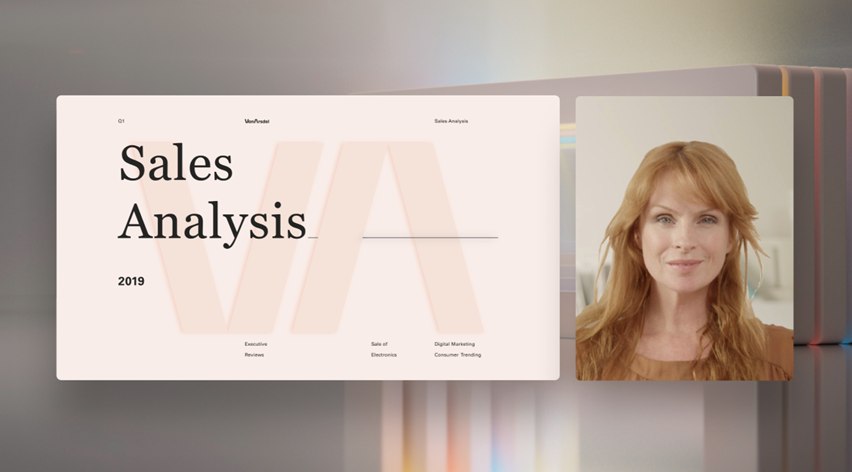
If you are using Microsoft Teams and often sharing presentations like I do every day, you might have been annoyed at the fact that you had to choose to either show your face or share your screen.
The problem with having your face in a small box is that your audience is unfortunately missing all the small cues that your face shows while speaking.
At the end of the day we learn from people not from slides, and seeing slides with a voiceover is way less entertaining than seeing people talking over slides.
With a new feature that rolled out in August 2021 Microsoft is giving more options to presenters on how to "show up" on their audiences' screens.
And after 18 months of working from home due to the COVID-19 pandemic, I think it was about time.
(This doesn't help anyway when your presentation is not well prepared — but in case you have done your homework properly then you can definitely start playing with this feature to spice up your performances.)
How to Use Dynamic Presenter Modes
When you start sharing content in Teams you will be presented with the "Presenter mode" dialogue, which includes three options: Standout mode, Side-by-side mode, and Reporter mode.
Standout Mode
In standout mode your silhouette will appear over the content you are presenting. This means that if you don't pay attention to what is shared in the bottom right corner of the screen you might block the view of the slide behind you.
Fortunately, as the presenter you will have a mini-screen that only you can see, so you will be able to notice what is visible to the audience and what is not.
Side-by-Side Mode
The side-by-side mode will show a vertical box with your face alongside the slides you share. The positive thing about this mode is that the slides are always fully visible, and your face is too. However, especially on small screens, the size of your slides will be smaller. In that case you should pay attention to having clear fonts and large text — as we always suggest in our online course.
Reporter Mode
The Reporter mode is a blend of the previous two. Your audience will see your silhouette in the bottom right corner of the screen (rather than a full camera box) and a box where the content is shared on the left side.
The benefit of this is that both your face and your content will be slightly larger than in side-by-side, though not as large as full screen.
Changing Presenter Mode on the Fly
If you want to change the presenter mode while presenting, simply hover near the top of your screen and a dialogue will appear giving you the possibility to switch between presenter modes at any time.
When Will You Get It?
The feature started rolling out in mid-August 2021 and was rolled out to all users by mid-September 2021, according to Microsoft.